Business vs. personal classification
Business vs. personal classification controls how Comma treats each conversation for retention and exports. It does not change what Comma captures. Capture is set up separately through your integrations. Classification only decides whether Comma archives a conversation (business) or holds it temporarily (personal).
Setting business platforms
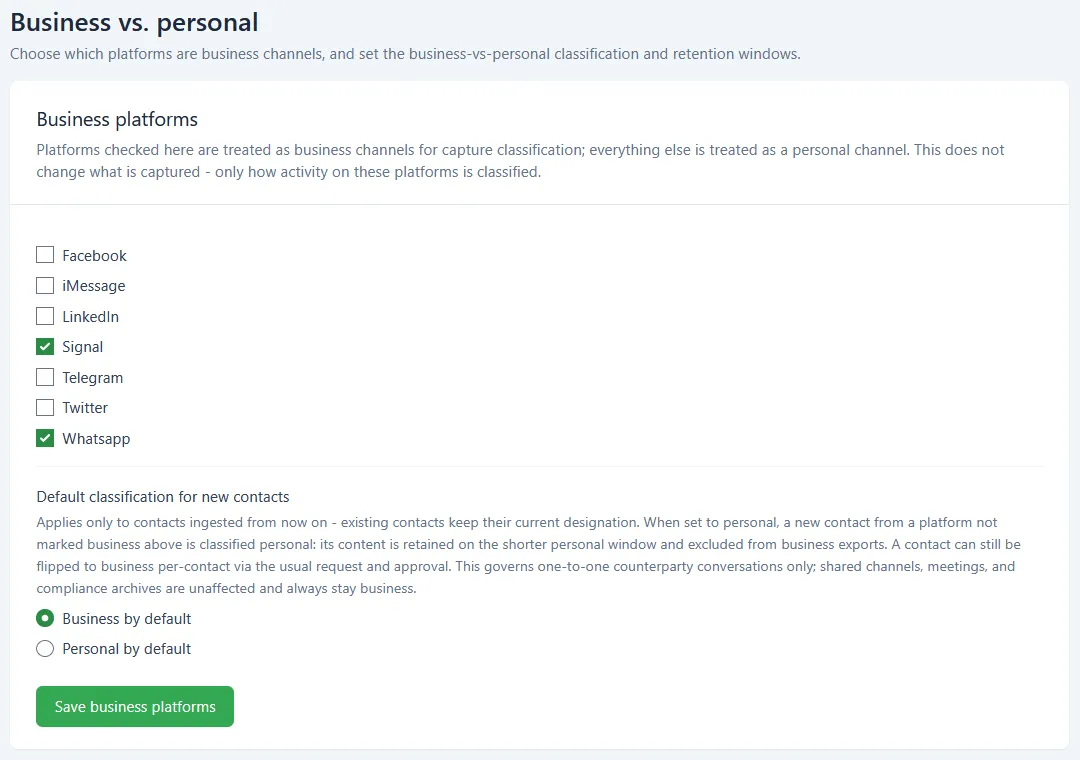
Section titled “Setting business platforms”The Business platforms list covers your individual integrations, the platforms where each user connects their own account (for example by scanning a QR code in WhatsApp or Signal). Checking a platform here sets its contacts to default to business, so their conversations are archived. Anything left unchecked defaults to personal. This is only the starting point. You can still toggle individual contacts to business or personal at any time.
-
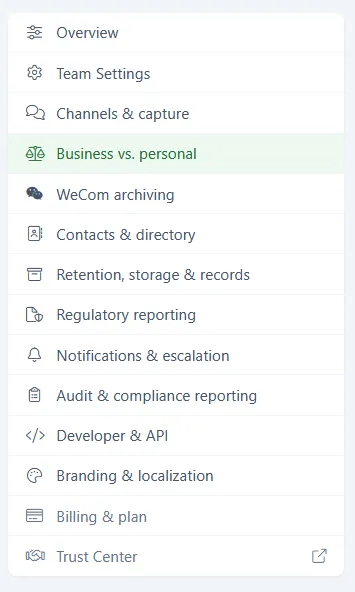
Log in to the Comma dashboard as an admin and open Team > Configuration > Business vs. personal.
-
Under Business platforms, check each platform whose contacts should default to business. For example, if every contact your team reaches on WhatsApp should be treated as a business contact, check WhatsApp.
-
Leave a platform unchecked if its contacts should default to personal.
-
Click Save business platforms.
Default classification for new contacts
Section titled “Default classification for new contacts”This setting applies to your workspace integrations, the platforms your organization connects centrally (such as Slack and email). It decides how Comma classifies a new contact on those platforms. It applies only to contacts ingested from now on. Existing contacts keep their current designation until you change them individually.
- Business by default classifies new contacts as business, so their conversations are archived.
- Personal by default classifies new contacts as personal. Messages from personal contacts are held temporarily, then disposed.
To change the default, select Business by default or Personal by default, then click Save business platforms.
What’s next
Section titled “What’s next”- Adding Your Connections - How each user connects the individual platforms in the Business platforms list.
- Adding Workspace Integrations - How admins connect workspace platforms like Slack and email.
- Roles and permissions - Who can edit configuration.